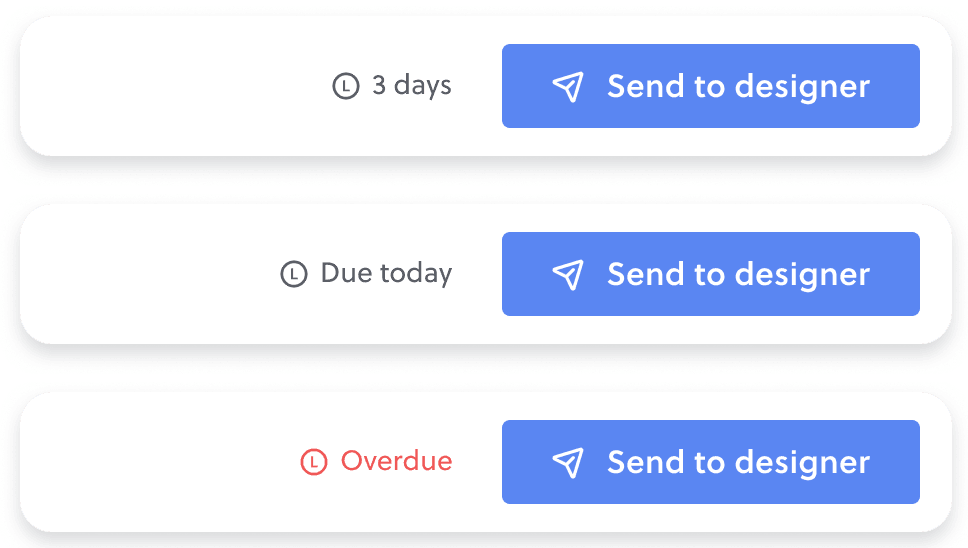
On-page client & designer website feedback. All in one place.
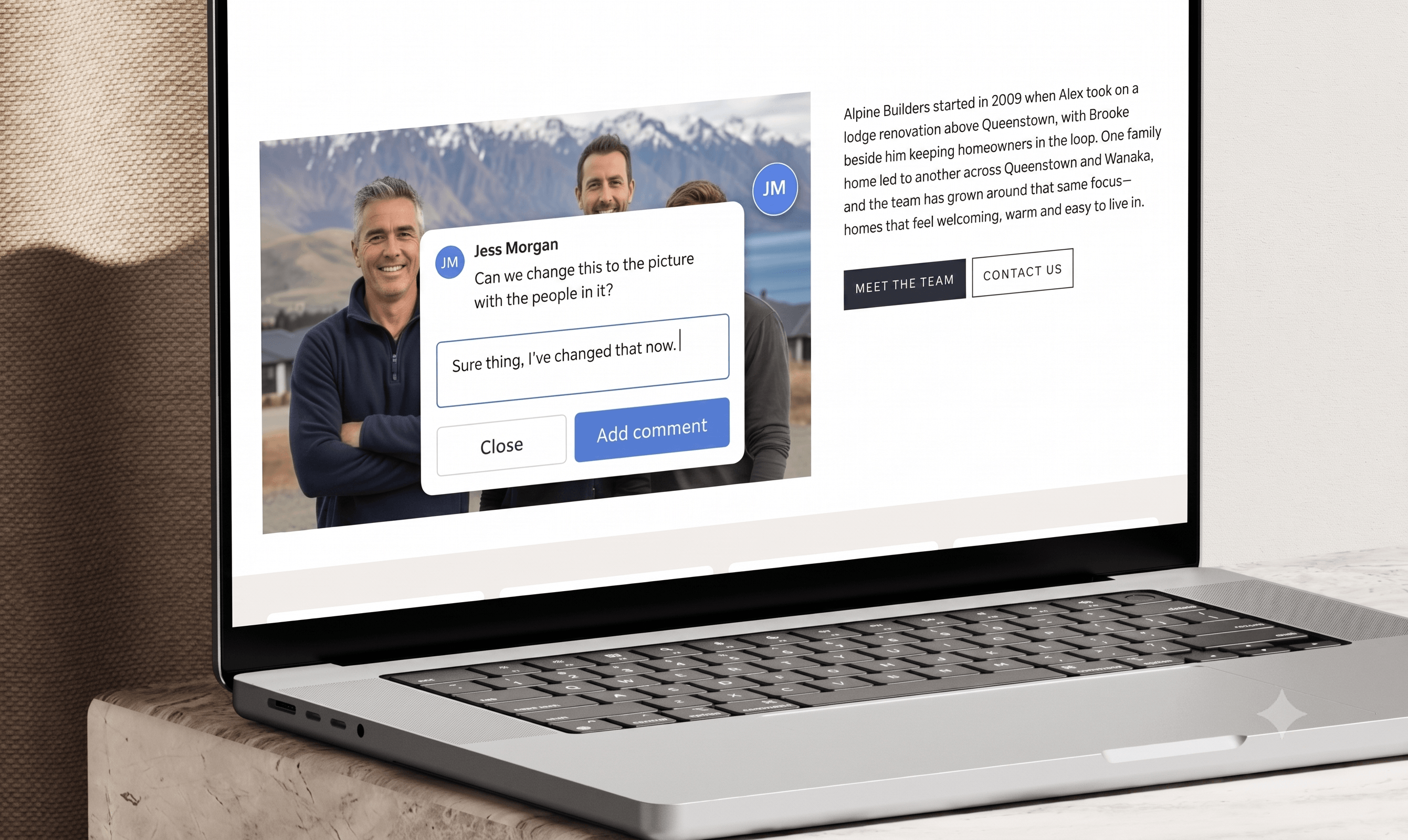
Share one link, and your client clicks right on the design to leave a comment. You get a tidy to-do list in the editor, tick it off, then send the next version back. Round by round, until it's signed off.
“This is going to be massive game changer in how I receive feedback from clients. No more messy emails or phone calls back and forth.”
KATIE, THE HANDLER, ROCKETSPARK PARTNER
“Saves so much time and is more accurate than second guessing comments in an email.”
MELISSA, QUEENBEE STUDIO, ROCKETSPARK PARTNER
“Before On-page feedback, getting client feedback used to mean juggling annotated PDFs, email threads, and Figma boards to get each comment to its intended location.”
TAM, SCOOCH MARKETING, ROCKETSPARK PARTNER
“You get absolute clarity. You instantly know exactly what the client is referring to.”
KAYLEE, SIMPLY KREATIVE, ROCKETSPARK PARTNER
Website feedback in context, in one place, in batched rounds
In context
Comments arrive pinned to the exact spot your client meant, so nothing needs translating.
In one place
Every comment lands in one sidebar in your editor, not scattered across emails, PDFs, and voice notes.
In batches
Feedback comes back in batches you control, so the scope you quoted stays the scope.
Client-designer website feedback now made easy. No more confusing email threads.
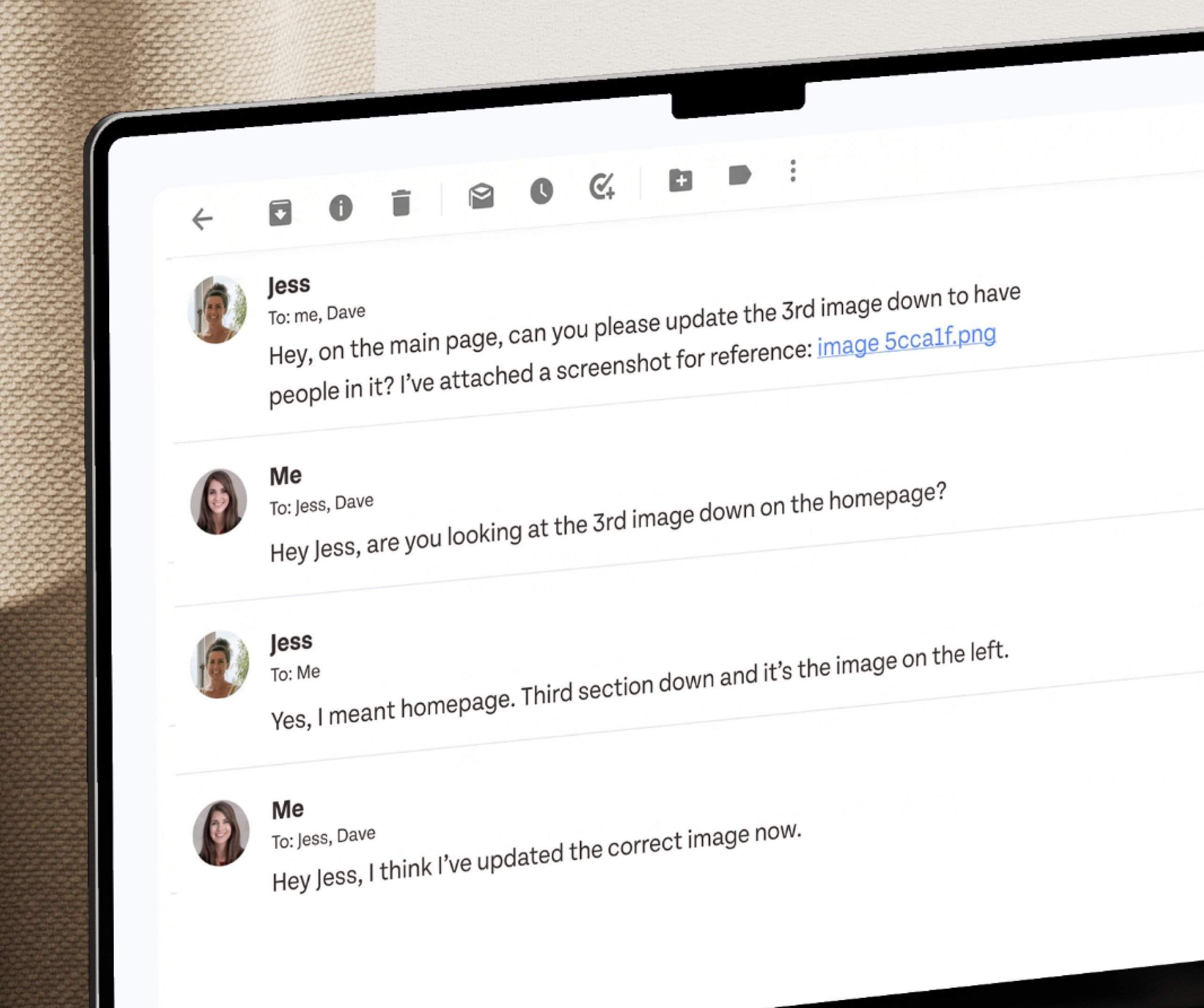
Explaining website changes over email can be:
❌ Slow
❌ Confusing
❌ Frustrating
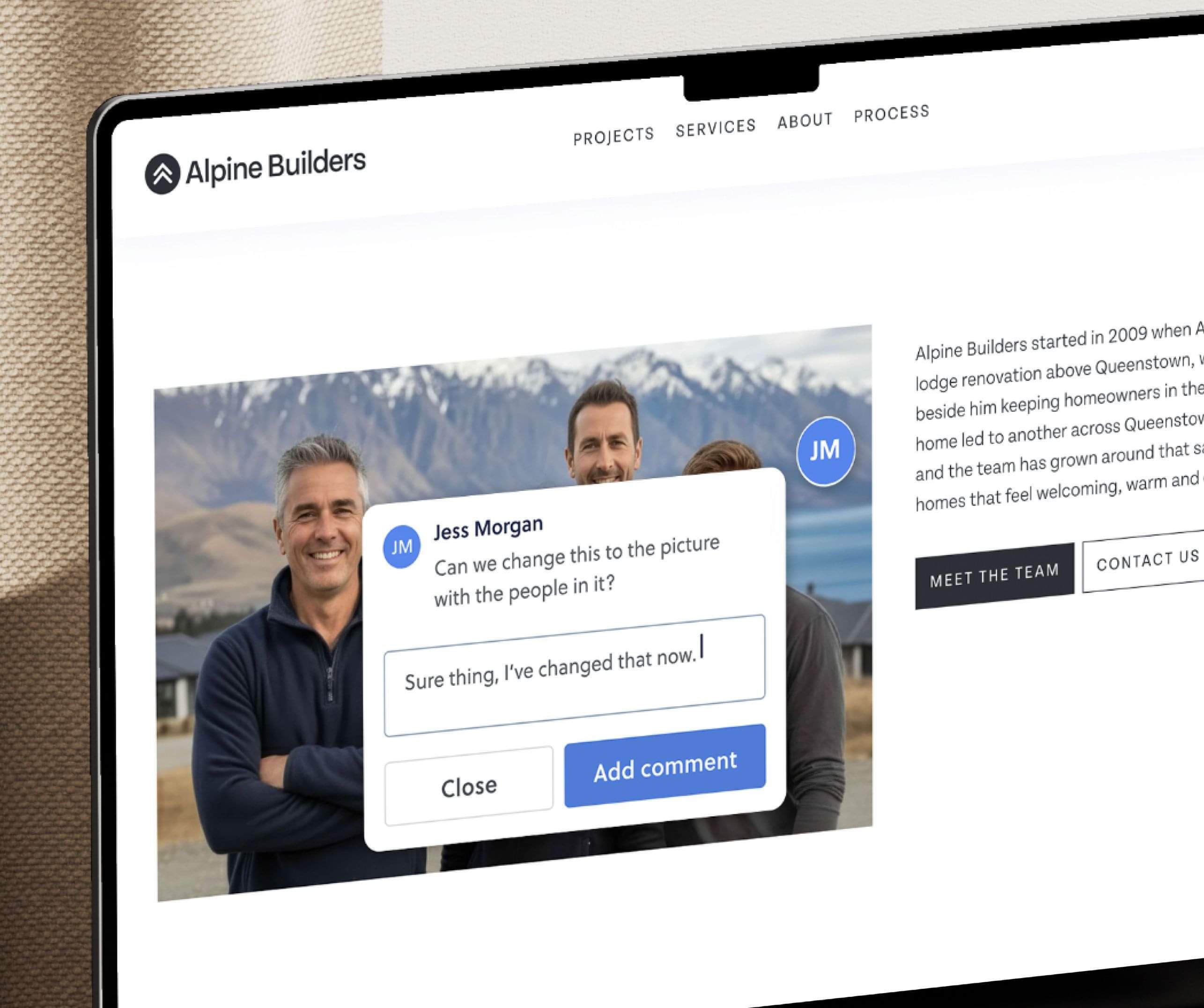
On-page feedback makes website changes:
✅ Fast
✅ Clear
✅ Easy
The whole loop
Share a link
Copy one link from the editor and send it however you like. No account, no signup for your client.
Click & comment
Your client clicks the exact spot, types a sentence, and pins it to the design.
You tick it off
Every comment lands in your sidebar as a to-do. Click one, the canvas jumps to the pin. Reply or resolve.
Feedback rounds
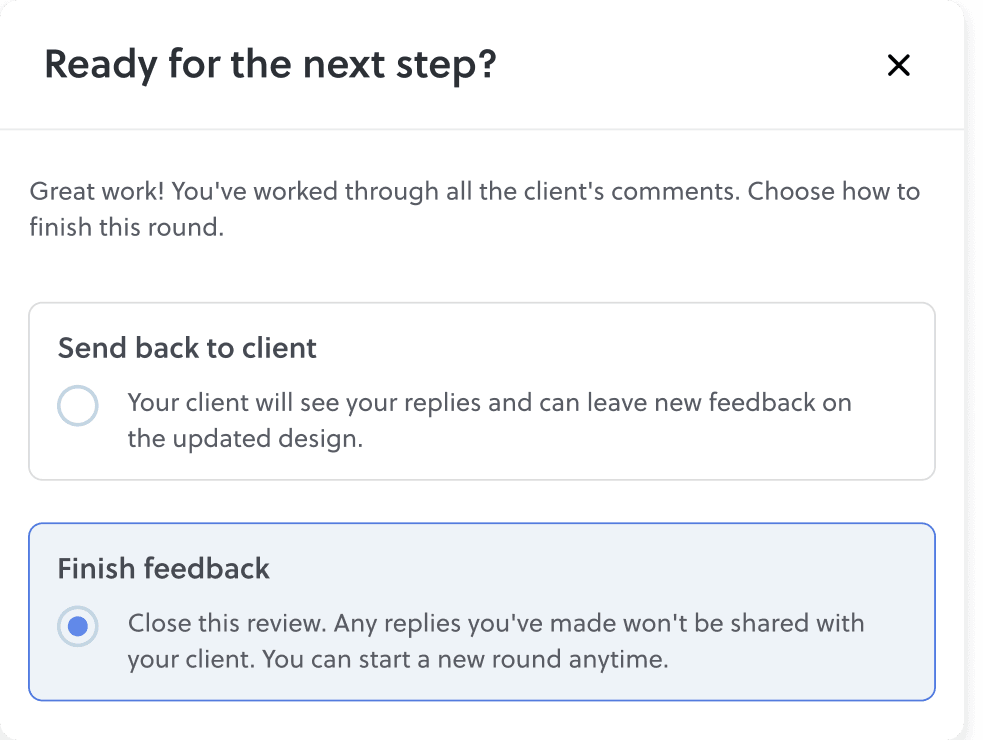
Send the design back for another round, or finish the feedback stage. As many rounds as you quoted.
Built for clients who don't speak design
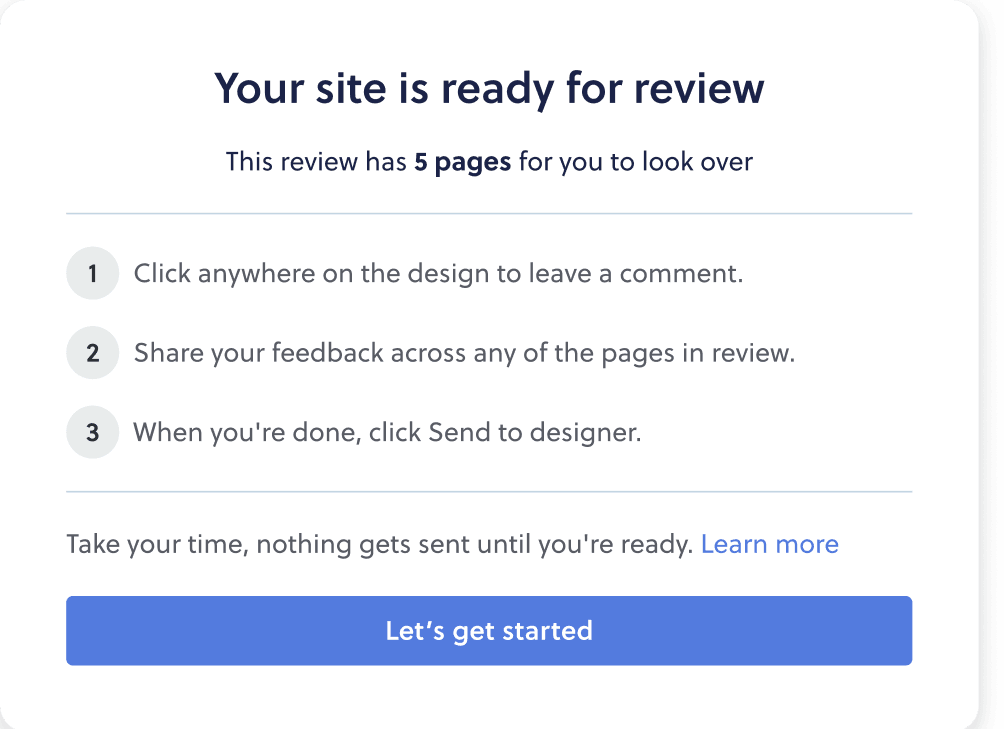
ONE LINK, ANY BROWSER
No client login. Just the link.
Choose the homepage only for round one, or open up a full site review. Your client opens the link in any desktop browser, no login required, and a progress ring tracks every page they've reviewed. They pick up where they left off, even on another device.
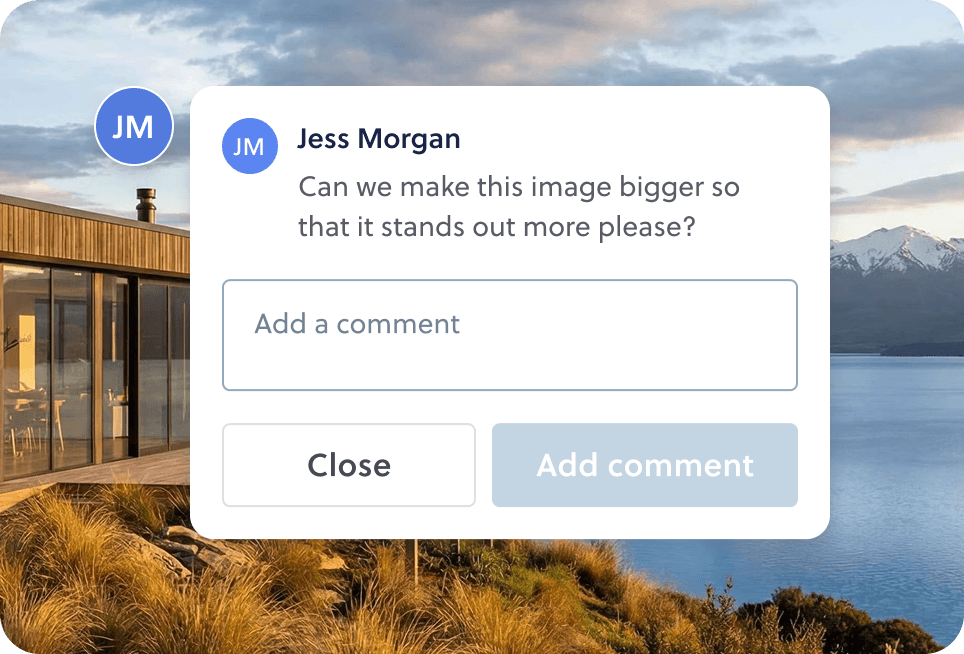
ON-PAGE PINS
No more “third paragraph down”.
Your client clicks anywhere on the live design and a pin lands on the exact spot, attached to the block, column or stack they meant. They don't need the vocabulary. They just point.
DESIGNER SIDEBAR
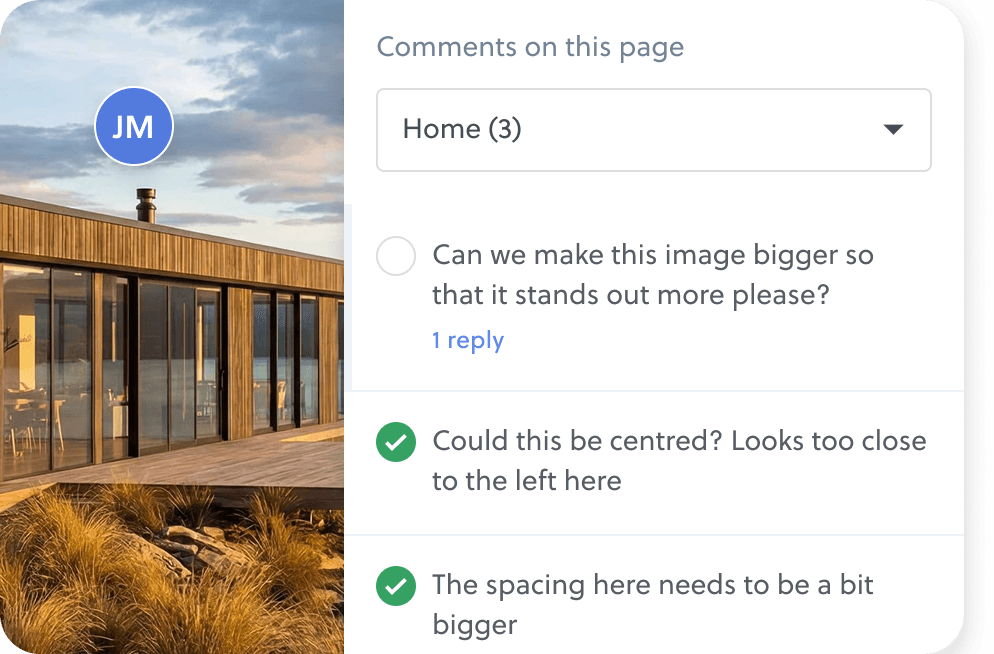
A to-do list, not a treasure hunt.
Every comment arrives as a row in your editor sidebar: client initials, the comment, and a tick. Work down the list and check each one off. No copy-pasting an email into a Word doc.
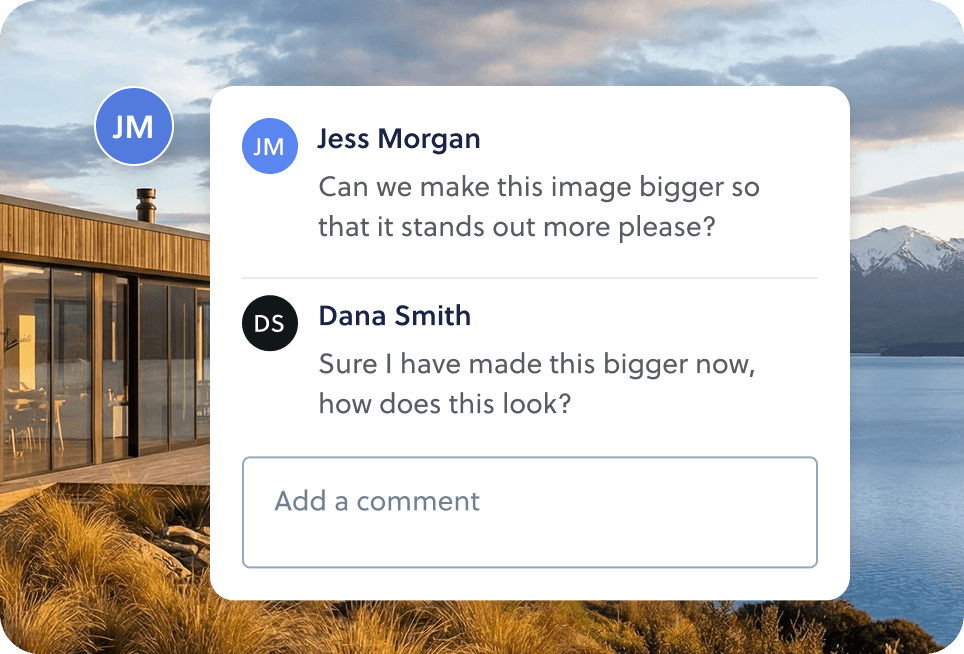
REPLY THREADS
Every comment can be a conversation.
Every pin has a thread. Ask a clarifying question, or talk your client through a design decision: “kept this left-aligned because it ties back to the copy underneath.” Resolve a thread and it reopens automatically if they reply again.
BUILT-IN ROUNDS
Keep the project under control.
Clients batch their comments and send the whole round in one go, no drip-feed. When you've worked through them, you decide: send back for another round, or finish the feedback stage. Once it's finished, anything else is a quoted extra. No awkward email.
VISIBLE DUE DATE
A deadline your client can actually see.
Set a date and a live countdown sits in your client's toolbar: 3 days left → due today → overdue. It's a soft nudge, not a lockout, in the website's own timezone.